View feature layers in Client (Feature Layers tab)
Feature layers for a site are imported, enabled and their colours defined in XECUTE Config.
In XECUTE Client, on the Feature Layers tab, you can choose to enable and disable the visibility of the feature layer in the 3D Scene by selecting the check box next to the feature layer. You can also convert feature layers to activity areas. See Convert to activity area.
Tab Menu
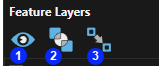
| Icon | Description | |
|---|---|---|
| 1 | Feature Layer visibility | Toggle visibility of all feature layers. |
| 2 | Feature Layers as overlays | Toggle the draw order of the feature layers such that as overlays they are drawn last. Feature layers below the topographical surface will be visible when this setting is enabled. |
| 3 | Feature Layer snapping | Toggle to allow activity area vertices to snap to feature layer elements (during draw operations). |
- Feature layers can be converted to activity areas in the same manner that guidance polygons and solids are converted.
- To view a feature layer in the 3D Scene, select the check box next to the feature layer name.
- To covert a feature layer to an activity area, click the feature layer name to highlight it, then click the Covert to Activity Area button at the upper right of the grid.
- Multiple feature layers can be selected then converted into activity areas.
- The feature layer import in XECUTE Config supports various file formats of line string and tri-surface data types.